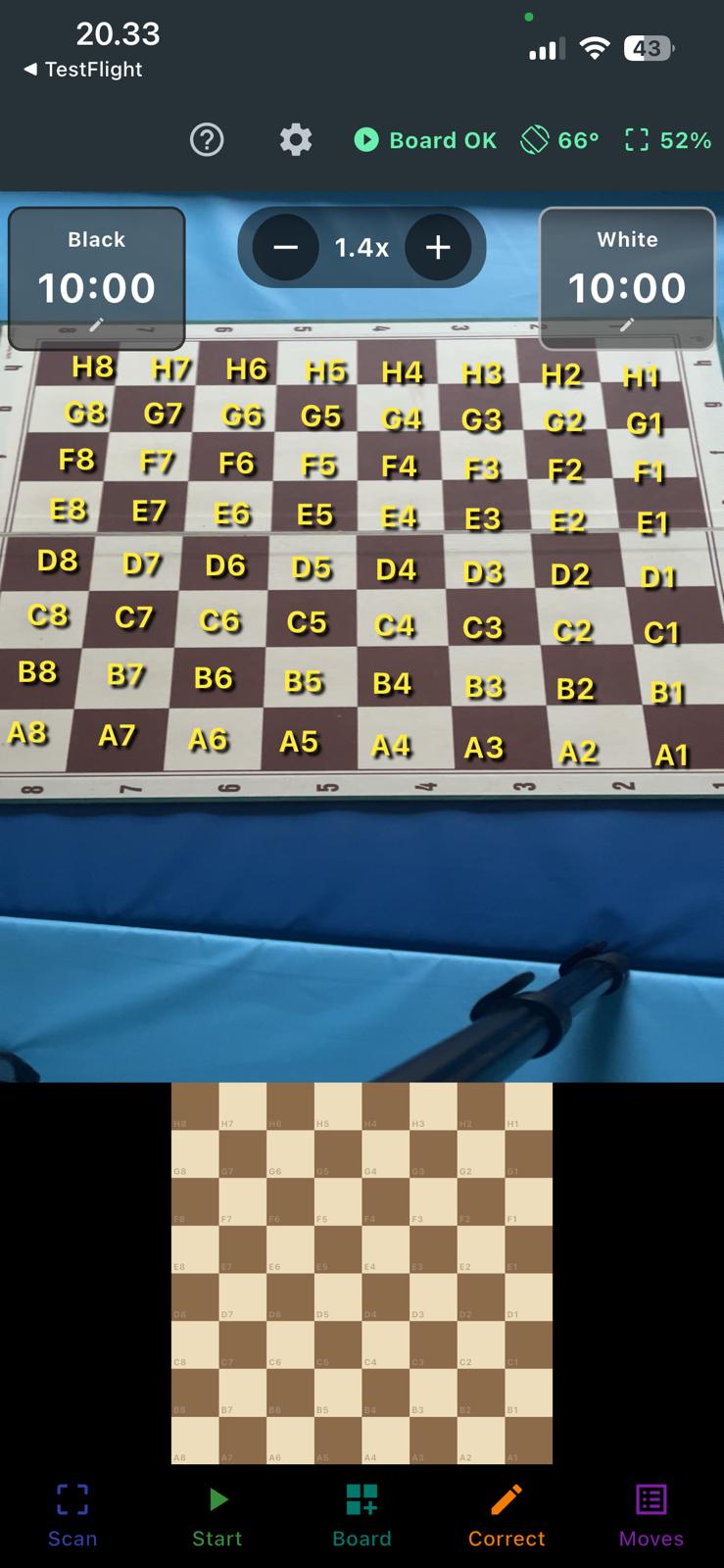
Board orientation
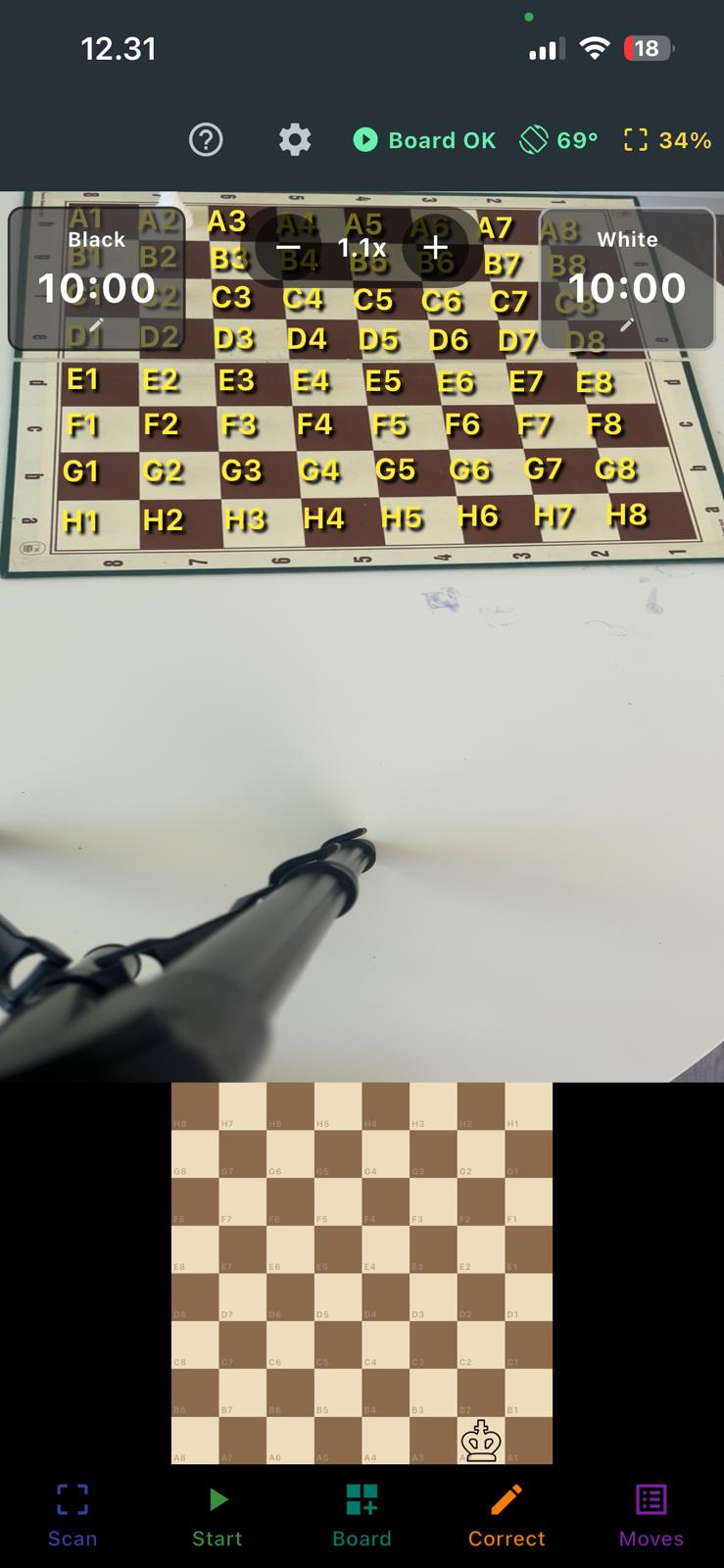
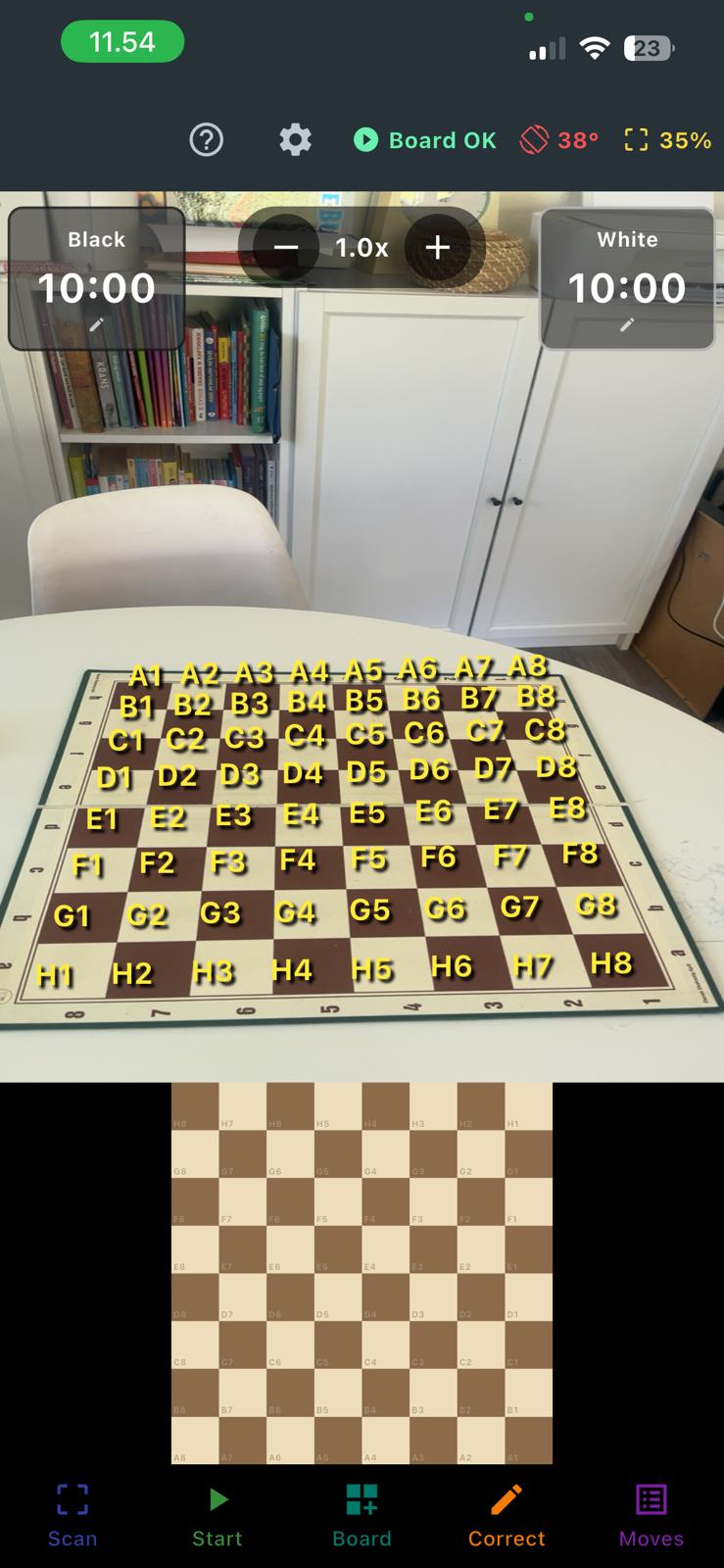
By default, VisionChess assumes the A1 square is in the bottom-right corner
of your camera view — i.e. the phone is sitting on the side of the board next to White's
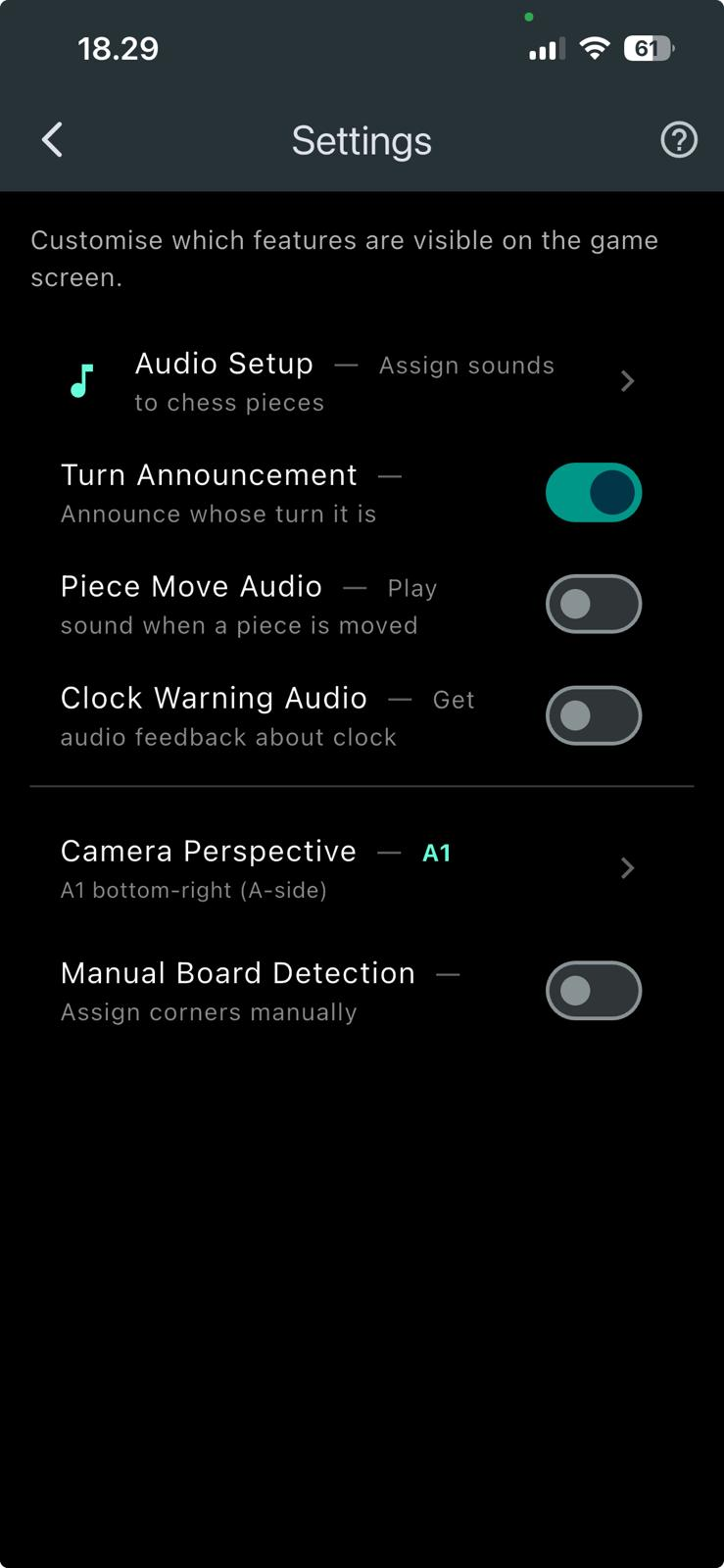
queenside / Black's kingside. If you place the phone elsewhere, change the corner from
Settings → Camera Perspective. Two options are supported: A1 (A-side) and H8
(H-side) in the bottom-right.
Bottom menu buttons
- Scan — Detects the board automatically. Use it once at the start, with an
empty board or pieces in their starting position. The app maps the 64 squares onto the
camera view so it knows what's where.
- Start — Begins the game: starts both clocks and starts recording moves
in standard chess notation. Tap again to stop.
- Board — Switch to a different chess set model (e.g. Pokemon, Drago,
H.C. Andersen). Models can be downloaded on demand.
- Correct — Lets you fix anything the AI got wrong on a square. Your
corrections help the model improve for everyone.
- Moves — Shows the move list in chess notation, ready to copy or share
as PGN to chess.com / lichess.
Status indicators (top bar)
- Help (?) — Toggle help mode. Tap any button to see a short explanation
instead of triggering its action.
- Settings (⚙) — Opens the settings page (explained below).
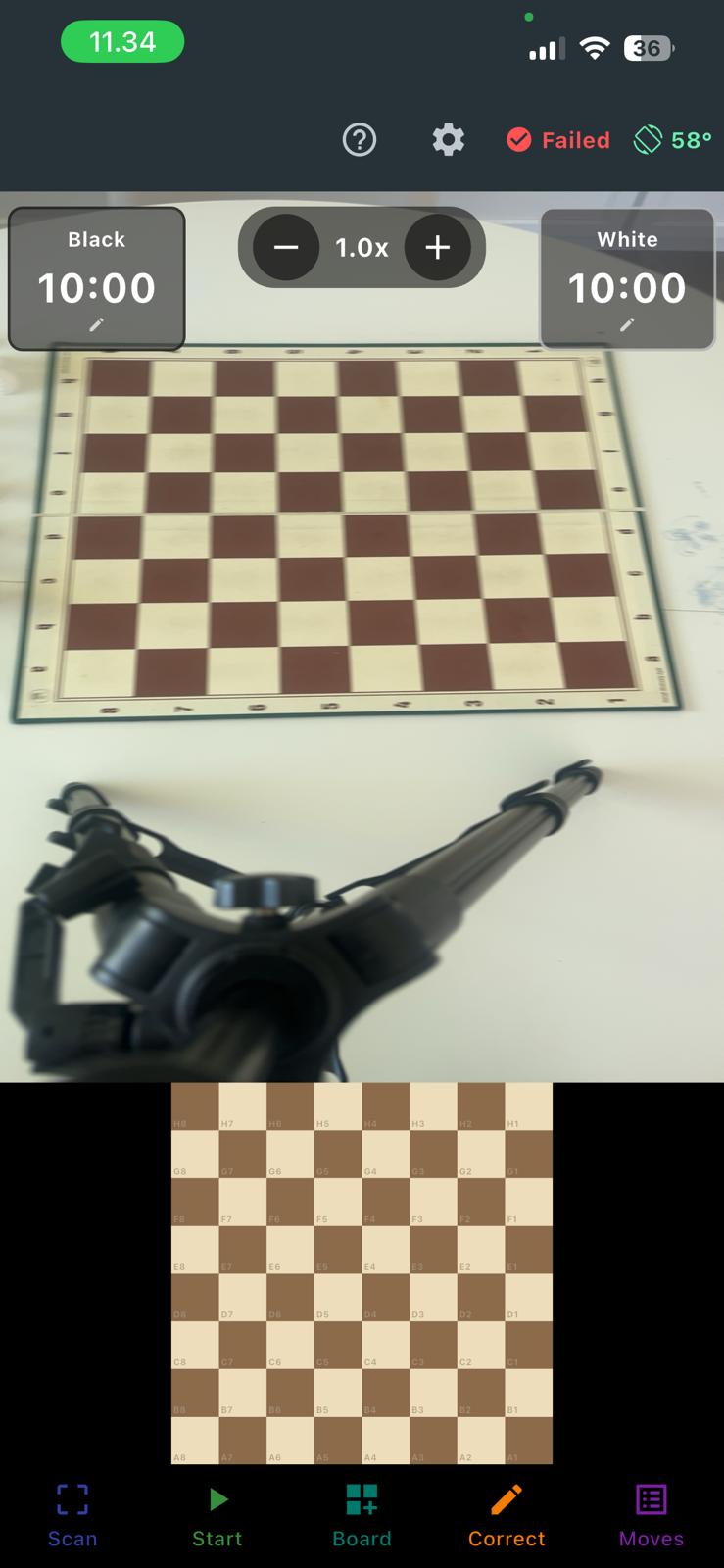
- Board OK / Scanning / Failed — The current detection state. Green when
the board is locked in, amber while scanning, red if detection failed.
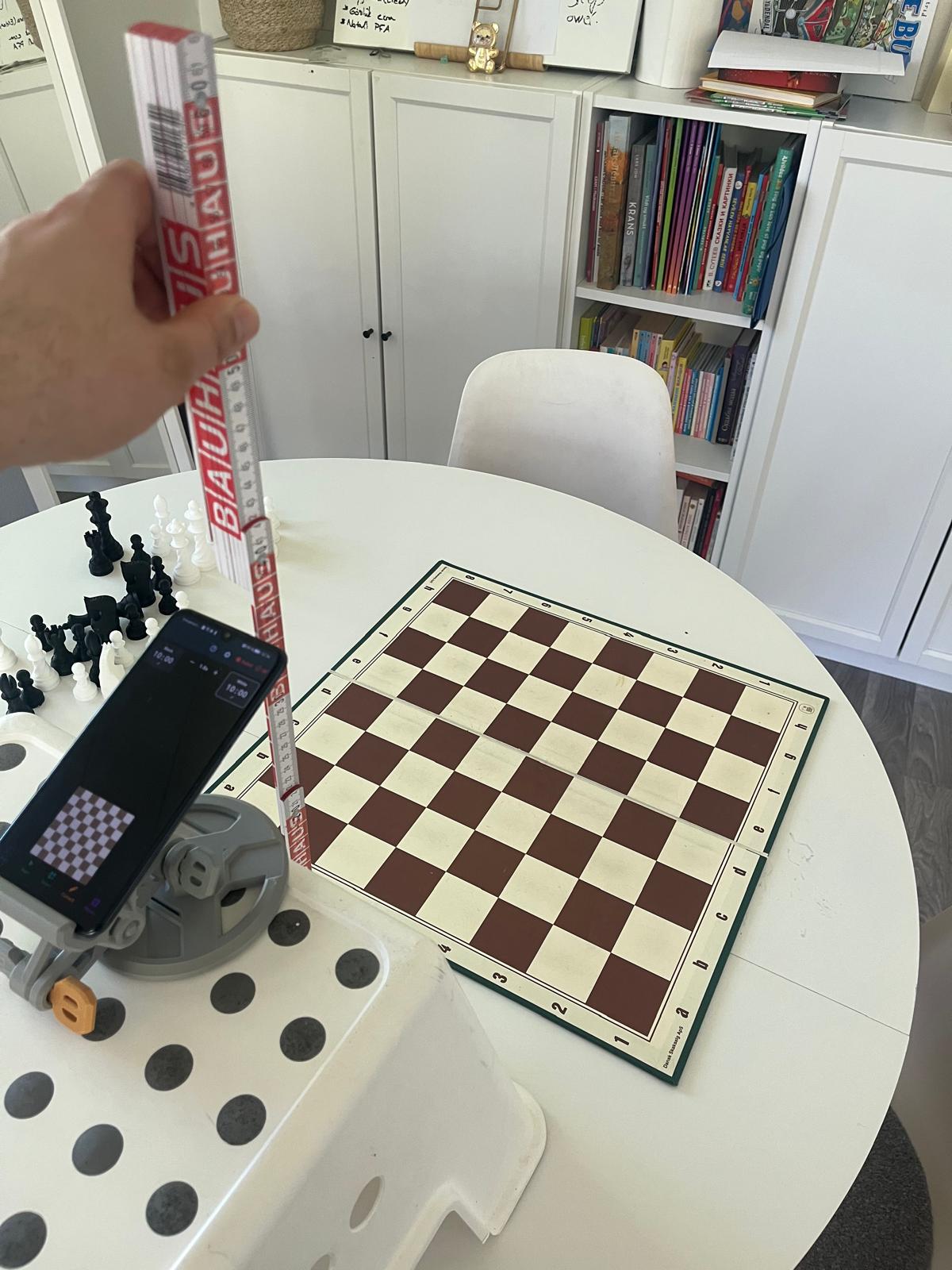
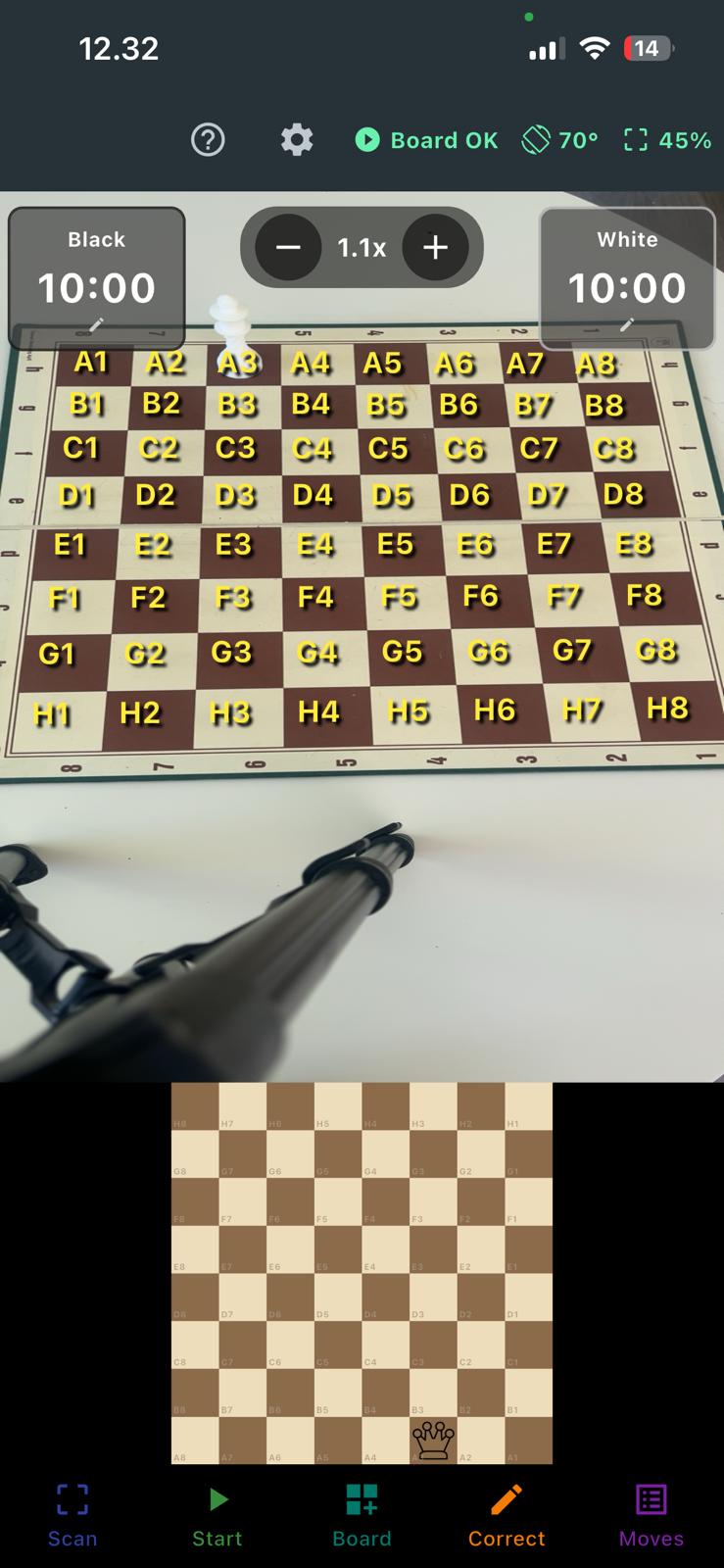
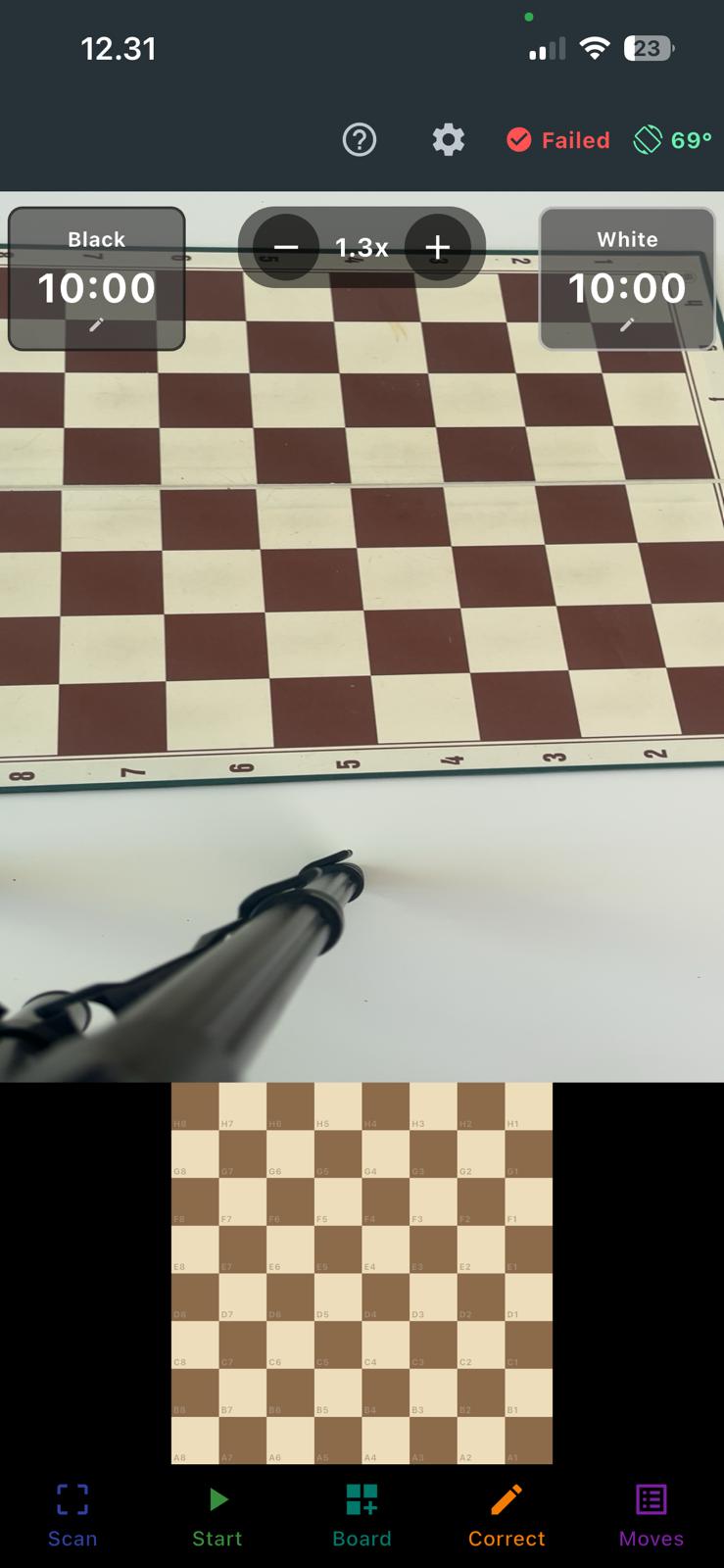 Pieces in the back rank will be cut off.